DeskVale Workspace Guide

Ergonomic Workspace Guide

Build a workspace around comfortable reach, supportive seating, thoughtful screen positioning, flexible desk height, and clean organization. Use this guide as a practical starting point, then adjust the setup to fit your body, equipment, room, and daily routine.
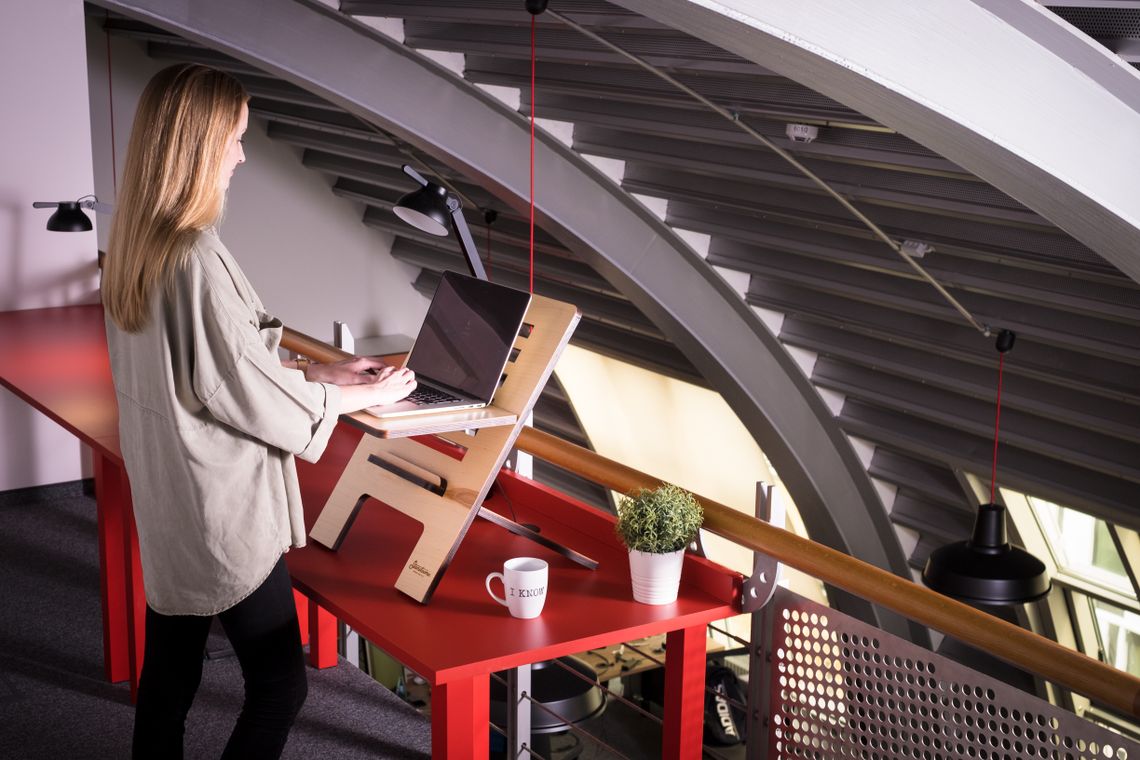
Woman using a laptop at a standing desk in a modern ergonomic workspace
A useful ergonomic setup supports position changes instead of forcing the entire workday into one fixed posture.

Setup Basics

Start With Fit, Not a Fixed Formula

An ergonomic workspace is not one exact arrangement that works for everyone. Desk height, chair dimensions, screen size, desk depth, body proportions, available floor space, and the type of work being done all influence the right setup.

Begin with the largest pieces—the desk and chair—then position the screen, keyboard, mouse, laptop, foot support, and accessories around the way you naturally sit, stand, reach, and look at your work.

Small adjustments can matter. If something regularly makes you reach, twist, lean forward, look sharply downward, or fight against cables and equipment, change that part of the setup before adding more accessories.

This guide provides general workspace-setup information, not medical advice. If you have persistent pain, numbness, weakness, or another health concern, seek guidance from an appropriate qualified health professional.

Four Foundations

Build the Workspace in the Right Order

A strong setup becomes easier when each decision follows the previous one instead of treating every accessory as an isolated purchase.

01

Choose the Work Surface

Confirm desk width, depth, height range, legroom, equipment space, and clearance before positioning smaller accessories.

02

Set the Chair

Adjust seat height, back support, arm position, and foot contact before fine-tuning screen and keyboard placement.

03

Place Screens and Input

Position monitors, laptops, keyboard, and mouse around a comfortable viewing direction and easy working reach.

04

Finish With Organization

Route cables, power, documents, and smaller accessories only after the main workstation is in its final position.

Desk Height

Let the Desk Meet Your Working Position

Whether you use an electric standing desk, standing desk converter, writing desk, or compact workstation, the work surface should allow your keyboard and mouse to stay within a comfortable reach without forcing the shoulders upward or pulling the upper body forward.
Start with relaxed shoulders Set the work surface so your hands can reach the keyboard and mouse without deliberately lifting or shrugging the shoulders.
Keep useful legroom Under-desk storage, control boxes, cable trays, and crossbars should not unnecessarily crowd the space where your legs and feet move.
Use standing height as another setting When standing, reposition the desktop and screen rather than simply raising the desk and leaving every other element unchanged.
Save repeatable positions If your electric desk offers memory presets, use them for practical sitting and standing positions that you can return to consistently.
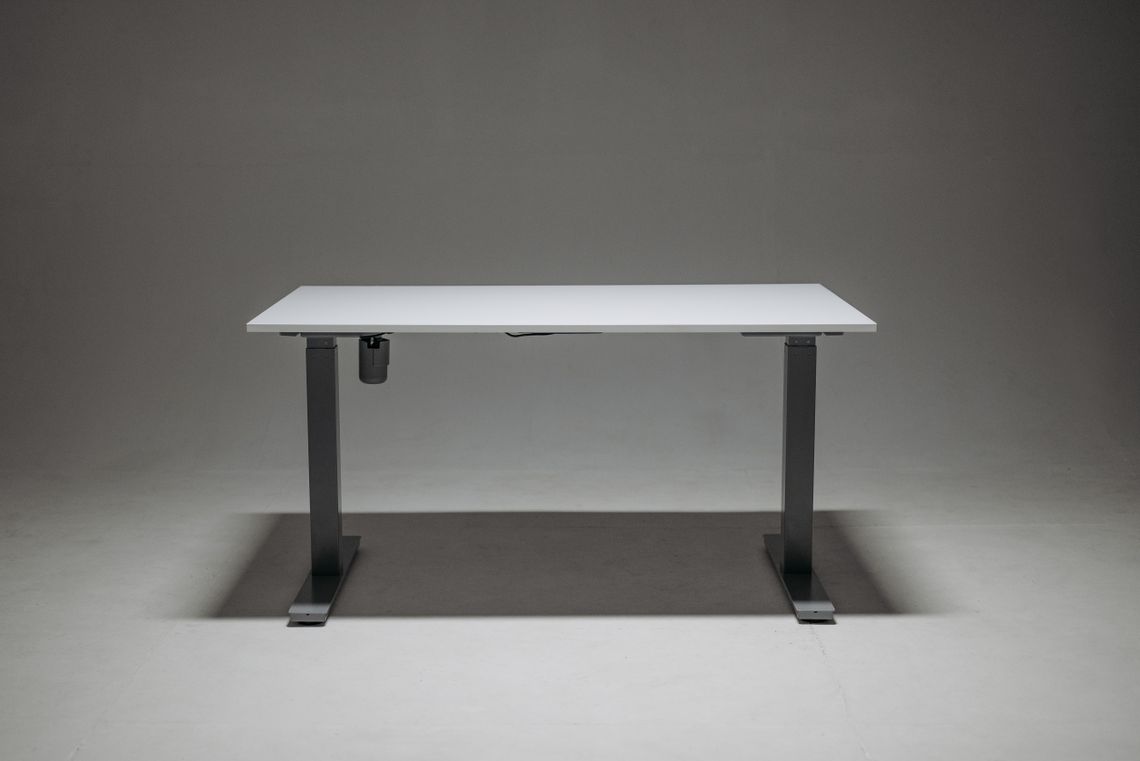
White height adjustable desk designed for an ergonomic workspace
An adjustable desk creates room to refine working height instead of accepting one fixed surface position.

Chair Setup

Support the Body Before Fine-Tuning the Desk

Ergonomic office chairs, mesh task chairs, kneeling chairs, active seating, drafting stools, lumbar supports, seat cushions, and footrests all solve different needs. Start by making the chair stable and comfortable, then adjust the workstation around that position.
Set a stable seat height Choose a height that lets you sit comfortably at the desk while maintaining reliable support through the feet or a footrest.
Use the backrest intentionally Adjust lumbar or back support so it feels supportive rather than forcing the body into an exaggerated position.
Keep armrests out of the way Armrests should support the arms when useful without preventing the chair from approaching the desk comfortably.
Add a footrest when useful If the chair must sit higher to match the desk, an adjustable footrest can provide a more stable place for the feet.
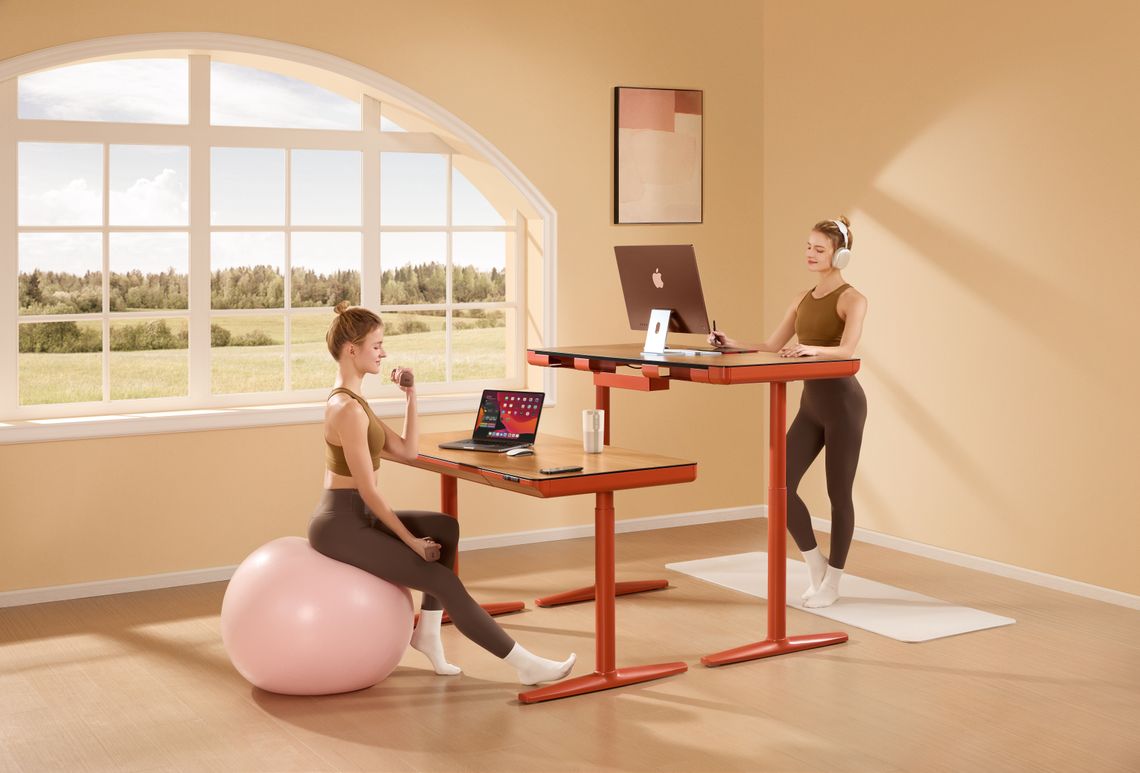
Modern home office with sitting and standing workstations and flexible seating
Different seating styles can work well when the desk, feet, back support, and working height are considered together.

Screen Position

Bring the Display Into a Comfortable View

Monitor arms, mounts, and laptop risers are useful because they separate screen position from the desktop surface. That makes it easier to refine viewing height, distance, and angle while preserving space for the keyboard, mouse, documents, and other work.
Center the primary screen Keep the display you use most often in the easiest viewing position rather than constantly turning toward a secondary screen.
Adjust distance before height Move the screen to a comfortable viewing distance, then refine its height and angle instead of solving everything with one adjustment.
Use monitor arms for flexibility Check screen weight, mounting compatibility, desk thickness, and clamp clearance before installing an arm or mount.
Treat laptops as displays when needed A laptop stand can raise the screen, but pair it with an external keyboard and pointing device when the built-in keyboard becomes difficult to reach.
Monitor positioned on a height adjustable standing desk
Screen positioning should work with desk height and seating rather than being treated as a separate decision.

Keyboard and Mouse Zone

Keep Daily Controls Inside Easy Reach

The keyboard, mouse, trackpad, phone, and other frequently used controls should sit in the easiest working zone. Keyboard trays and wrist supports can help when the desktop height, depth, or available surface area makes direct placement awkward.
Keep input devices close Place the keyboard and mouse so routine work does not require repeated forward reaching across the desktop.
Leave room for the mouse A large desk mat or clear working zone helps keep pointer movement unrestricted by notebooks, cables, or other accessories.
Use trays only when they improve fit An under-desk keyboard tray should provide enough width, leg clearance, and stable mounting for the way you actually work.
Keep wrist support neutral Use wrist supports as light contact surfaces during pauses rather than forcing the hands into a fixed angle while typing.
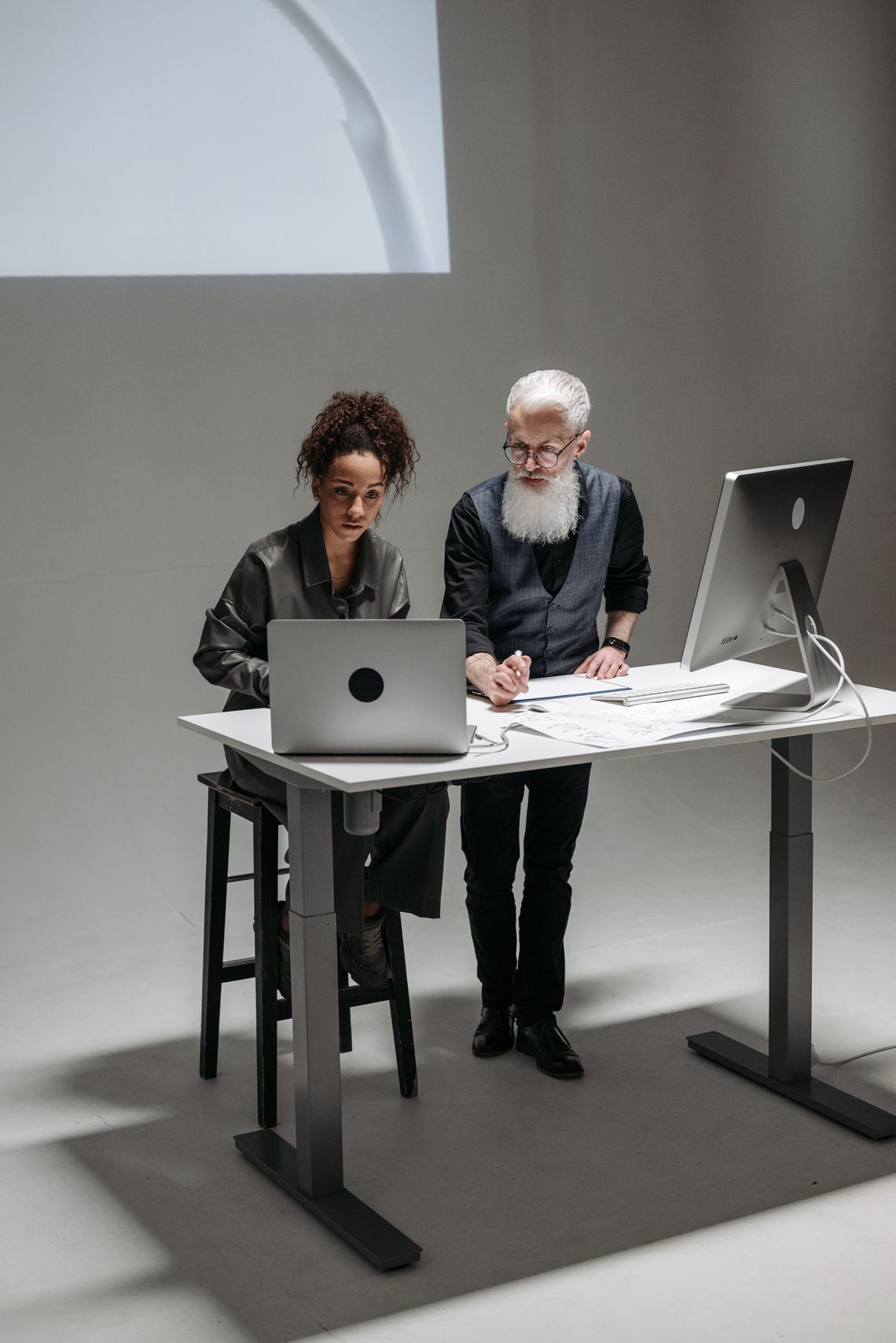
Two people collaborating at a standing desk with laptops in a modern office
Keep the tools used most often inside a comfortable working zone instead of making the body reach around the desk.

Cable and Power Layout

Organize Cables Around Movement

Cable management is part of ergonomics because loose or tightly stretched cables can interfere with desk adjustment, monitor-arm movement, chair clearance, and access to frequently used devices. Plan cable routes after the furniture and screens are positioned.
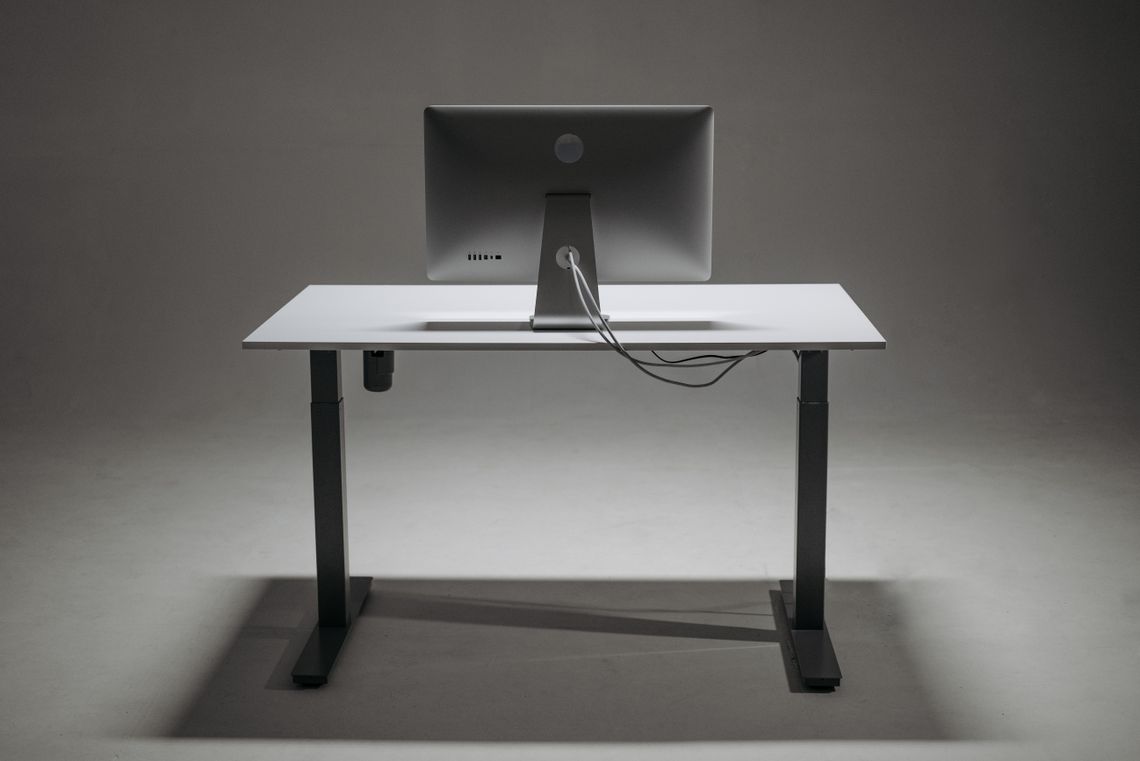
Test the full adjustment range Raise and lower adjustable furniture before finalizing cable lengths so power and data cables are not pulled tight at the extremes.
Keep power off the floor where practical Under-desk trays and cable boxes can reduce loose cords around feet, chair casters, and standing areas.
Separate movable and fixed routes Allow monitors, laptops, and adjustable desks enough cable slack to move without dragging unrelated wires with them.
Preserve access Do not bury frequently used charging connections or controls so deeply that simple device changes require dismantling the setup.
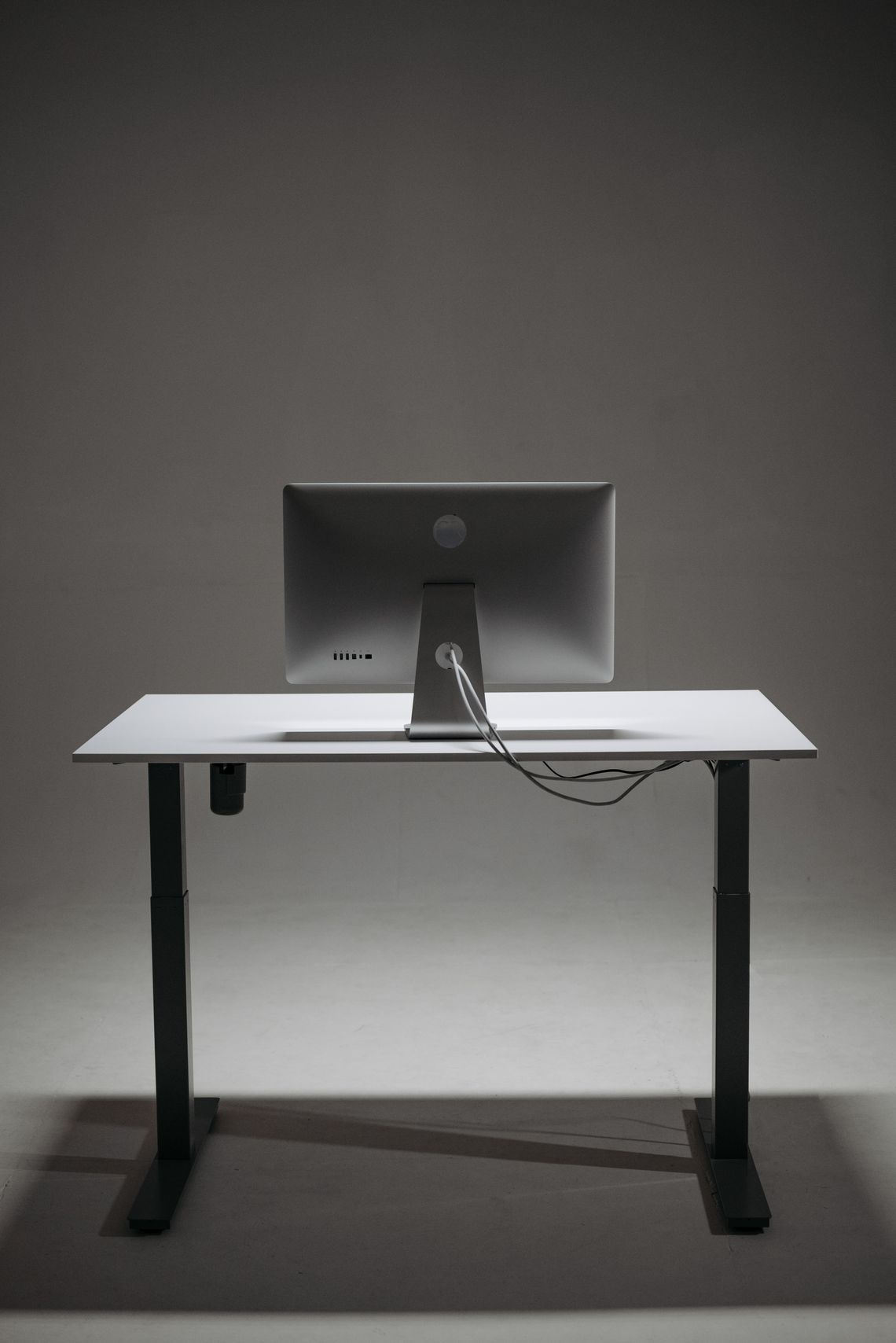
Rear view of a height adjustable desk with monitor and cable management
Cable routes should preserve the full movement of adjustable desks, screens, and devices.

Standing Zone

Make Standing a Comfortable Alternative

Standing desks are most useful when standing becomes one available working position rather than a requirement to stay upright for long periods. Adjust the desktop, screen, keyboard, and floor area together so the standing setup feels as deliberate as the seated setup.
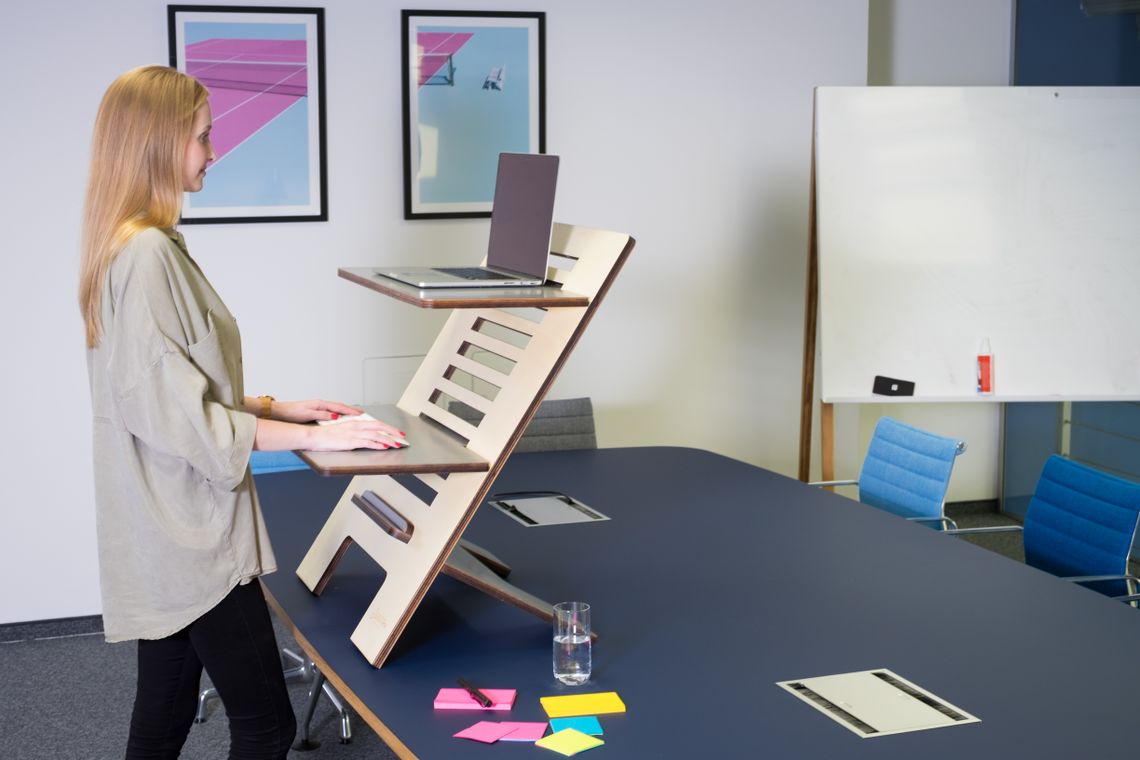
Clear the floor area Keep bags, cable loops, storage, and other obstacles away from the area where you step, shift weight, or reposition the chair.
Use a standing mat when useful An anti-fatigue mat can provide a softer standing surface, but it should remain stable and should not create a trip obstacle.
Recheck screen height The correct screen position while seated may not remain comfortable after the desk is raised to standing height.
Switch positions naturally Use sitting, standing, and short movement breaks as options throughout the day rather than treating one posture as the permanent answer.
Woman using an adjustable standing desk in a contemporary office
Treat standing as one useful position in a flexible workday, with the screen and input devices adjusted to match.

Movement Routine

The Best Setup Still Needs Movement

Change position before discomfort builds

Use the adjustability already available in the desk, chair, monitor arm, and workspace instead of waiting until one position feels difficult to maintain.

Use task changes as natural reset points

Phone calls, reading, planning, and short administrative tasks can be opportunities to stand, walk briefly, or change working position.

Keep frequently used items accessible

A well-organized desk reduces unnecessary repeated reaching while still giving you room to move intentionally when you choose to.

Reassess the workspace as equipment changes

Adding a second screen, different laptop, larger chair, new desk, or additional storage can change the balance of a setup that previously worked well.

Final Checklist

Review the Workspace Before Calling It Finished

Use these six checks after arranging the desk. If one answer is clearly no, that area may be the best place to make the next adjustment.

01

Can You Sit Close Enough?

Check that armrests, drawers, keyboard trays, or storage do not prevent the chair from approaching the work surface comfortably.

02

Are Screens Easy to View?

Your primary display should be positioned where you can work without repeatedly leaning forward or turning sharply to one side.

03

Are Controls Within Reach?

Keyboard, mouse, phone, and frequently used accessories should not require repeated long reaches across the desk.

04

Do Your Feet Feel Supported?

Check the floor or footrest position after setting the chair to the height required for comfortable desk use.

05

Can the Desk Move Freely?

If the desk or monitor arms adjust, test the full range and confirm that cables, trays, walls, and storage do not interfere.

06

Is the Surface Still Usable?

After adding devices and accessories, make sure enough clear desk area remains for the tasks you perform most often.

Workspace Support

Need Help Choosing the Right Setup?

DeskVale support is available 24/7 for questions about desks, seating, monitor support, laptop stands, footrests, keyboard accessories, workspace organization, orders, delivery, returns, and exchanges.

Contact Support